Monday, 26 November 2018

Metatrader 101: How to Set Up Push Notifications in Metatrader

Push notifications in Metatrader can be a great tool - you can get alerts to your smart phone on the move and so always be in touch with what's going on. Setting it up is fairly straight-forward - here's how to do it.

1. Firstly you need to be aware of what a push notification is: it's a message which is sent to the Metatrader app on your smart phone. So in order for this to work you need to have a smart phone on which you can install the Metatrader app. Go to the app store and install the Metatrader 4 app in the usual way.

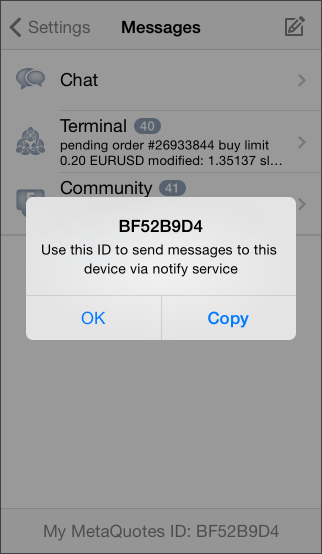
2. Once you have done this you need to get your Metatrader ID. This is a unique ID that identifies your app installation on your phone. You can find it under the settings icon on your app. It's going to be an eight digit/letter code that you need to make note of.


3. Next you need to go to your computer version of Metatrader which is going to be sending out the notifications. Go to the Tools | Options menu option to bring up the Options dialog box. Navigate to the Notifications tab.

4. Click on Enable Push Notifications and then fill in your Metatrader ID from step 2. Click on the Test button to try it out and you should get a message appear almost immediately on your phone.


5. That's basically it! Notifications aren't always immediate as they depend on the network over which they're travelling but they're usually pretty fast.


Metatrader 101: How to Set-up E-mail Alerts on Mt4

E-mail alerts from Metatrader can be a very useful tool. Indeed our own Mt4 Alert Indicators rely on it (and also phone push notifications) for sending information to users when they are away from their desks. But how does one set it up? This post describes the process

1. From within Metatrader select the Tools | Options menu option which will bring up the Options dialog box.

2. There are many tabs on this, select the Email tab and click the Enable tick box at the top in order to activate the various fields.

3. The way that it works is that you need a "relay" e-mail account which is used to send the messages to any other account that you want. By far the easiest way to do this is to set up a new gmail account. So you'll need to have a new gmail e-mail address together with it's password. For the purposes of this article lets assume that it's called relay_address@gmail.com and that you eventually want to send these e-mails on to some destination address destination_address@anything.com. I've put anything.com as part of the destination address to emphasise that it doesn't need to be a gmail address (though of course it can be if you want it to be).

Once you've created this gmail address then fill in the fields below like this:


The SMTP password is the password for your e-mail address. You can see that the SMTP login and the From fields are the same as the alert e-mail is going to come from this relay address and to be sent to your destination_address@anything.com address.

4. Now click on the Test button and look at the Journal tab closely to see what it says.If it says:

Mail: 'Test message' has been sent

or words to that effect then you know that it's all working and you can go and check in your destination e-mail box for your message. You've now finished the set-up and can stop here.

5. If on the other hand you get the message

Mail: login to smtp.gmail.com failed

then (assuming that you've correctly entered your account details in the dialog box) you've got one more step to do. Google have security settings for their accounts which by default restricts access from non-Google accounts so you need to change this setting. Go to your Google Account and you need to find the Apps with account access section (this changes location from time to time so you will need to navigate around until you find it). Switch on the less secure access part.

Once you've done this try your Test message again. You should now find that it all works.

6. That should be it. You shouldn't ever need to access your relay gmail account again if you don't want to and it will faithfully keep forwarding your messages on for you. Now that you've configured all this, any e-mail notifications that your Mt4 indicators or EA's send will correctly work.

Wednesday, 12 September 2018

Installing and Using Strategy DLL's in ForexTester

A ForexTester strategy will be supplied to you as a Windows DLL library, so a file with a .dll suffix.

To install:

1. Shut down your copy of ForexTester

2. Find the folder where ForexTester is installed. This is usually something like
C:\ForexTester3\
(or C:\ForexTester2\ if you're running the older version)

3. Find the Strategies sub-folder (so C:\ForexTester3\Strategies for example) and copy the the dll file there.

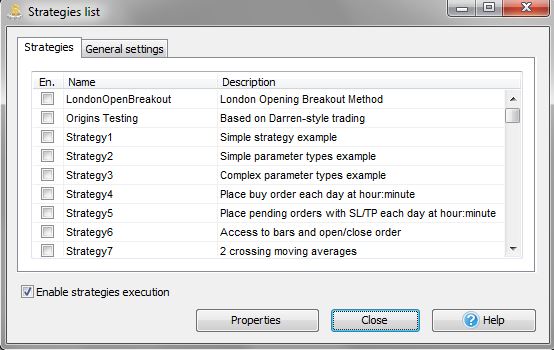
4. Re-start ForexTester and bring up the Strategies List dialog box by using the Testing | Strategies List menu option (note there is also a toolbar button to do this as well).

A typical Strategies List dialog box
5. Look for the strategy that you are choosing to install in the list. If you cannot see it then look on the Journals tab to see if there are any error messages explaining why it can't find or load the DLL.

6. Once you've found the Strategy, click on it to highlight it (it turns yellow) and then click on the Properties button to bring up the Strategy Properties dialog box for your strategy. Different strategies will have different parameters but please note that in general for a ForexTester strategy there will be a Currency Pair and a time-frame input. In order for your strategy to work you MUST ensure that both these inputs match the chart that you are working with otherwise the strategy will not work. Click the Apply button at the end to save your chosen input values and close the dialog box.

7. Back in the Strategies list dialog box, tick the box at the left-hand end of the line that lists your strategy to say that you want to activate your strategy. Please also ensure that the Enable strategies execution box is ticked at the bottom.

Your chosen strategy after activation

8. Your strategy should now be activated and will start working as you play through your data. Please note that you can turn all strategies on and off using the Testing | Enable/disable Strategy Execution menu option or alternatively by using the toobar button. If you want to reset your strategy at anytime then go back to the Strategies List and remove and then re-apply the tick on the left-hand side. This will reset the strategy back to its initial state.

The Strategy Enable/disable toolbar button

Troubleshooting
If you have any problems with any part of this installation then one useful tip is to look at the Journal tab of ForexTester where helpful information is printed out. There you should see any error messages appear when ForexTester tries to load up the dll.


Installing & Using Script DLL's in ForexTester

A ForexTester script will be supplied to you as one or two Windows DLL libraries, so files with a .dll suffix.

To install:

1. Shut down your copy of ForexTester

2. Find the folder where ForexTester is installed. This is usually something like
C:\ForexTester3\
(or C:\ForexTester2\ if you're running the older version)

3. Find the Scripts sub-folder (so C:\ForexTester3\Scripts for example) and copy the two dll files there.

4. Re-start ForexTester and find the Scripts panel. This is usually on a tab next to the Data Window but if you can't find it then go to the View | Show Panels | Scripts menu option, making sure that there's a tick next to it. You should see your script or scripts listed there though you won't initially see anything in the Hotkey section

The Scripts panel
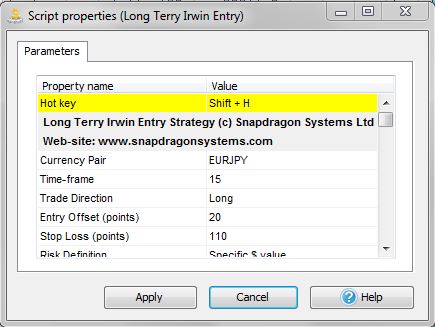
    5. Right click on one of the scripts and select Edit Script Properties. This will bring up the script properties dialog box. Here you can set all the inputs for your script. The first entry in this list will be the Hot key value. Please note that you must set this value to a unique key combination that is not being used by any other script, otherwise it will complain. Please also note that in general for a ForexTester script there will be a Currency Pair and a time-frame input. In order for your script to work you MUST ensure that both these inputs match the chart that you are working with otherwise the script will not work.

    A typical script input selection
    6. You can set the other inputs as required for your particular script.

    Troubleshooting
    If you have any problems with any part of this installation then one useful tip is to look at the Journal tab of ForexTester where helpful information is printed out. There you should see any error messages appear when ForexTester tries to load up the dll.


    To Use:

    When you want to apply the scrip to your chart you can either simply double-click on the script name in the Scripts panel or you can use the unique key combination. This will immediately run the script. Please note that a script is specifically designed to be a "run once" operation. To get it to run again you need to double-click again (or use the key combination again).

    Metatrader 101: Installing a DLL Library to your Mt4 Installation

    This is the one in a series of Metatrader 101 posts, partly so that I can have something to give to clients who are new to Mt4. It will cover the basics so people can get up and running quickly.

    Some more advanced Metatrader code that you'll come across will require a DLL (a Windows library file) to be installed as well as the actual .ex4 or .mq4 file. This is actually just as easy as installing any Metatrader code. Here's how to do it.

    1. A DLL file will have a .dll name tag to it so you'll know that it needs to be treated differently from other Metatrader files.

    2. Unfortunately, the location on your hard drive of your Mt4 software is rather complicated as it's split up into two locations. The bit where you need to copy your new software to is hidden away deep within the AppData section and you won't easily find it by exploring the various folders. To help you with this there is a menu option which will open the location for you. From your Mt4 software go to File | Open Data Folder in order to bring up Windows Explorer opened at the correct folder location.

    The folders within the MQL4 main folder

    3.  You'll see an MQL4 folder which you should open to reveal a series of sub-folders (see image above). Unlike for .mq4 or .ex4 files, DLL's need to go in the Libraries folder so navigate there and drop the file in the folder.

    4. That's basically it! Unlike for .mq4 or .ex4 files there's no need to refresh or restart your Mt4 program explicitly for the DLL though if you've installed some code which uses the DLL then you'll need to refresh or restart for that part. See the instruction on installing new Mt4 code for details on how to install mq4 or .ex4 files.


    Wednesday, 25 April 2018

    Importing Back-test Data in Metatrader4

    Back-testing with Metatrader4 can be a bit tricky for the unwary as there are some quirks that you need to be aware of and if you're not careful you can end up back-testing with random data rather than the good quality data that you thought you were. In this blog post I go through how to ensure that your back-test is what you think it is. I also walk you through the necessary steps for importing and converting your data to different time-frames. This is particularly relevant if you want to use good quality back-test data of your own and are worried about it being "contaminated" by data from other sources. Incidentally, you may wish to take a look at the Snapdragon Historic Data Service as a good source of clean historic data for back-testing.

    Part 1 - Clearing Out Old History Data
    The first thing to be aware of is that the data that is used in the Mt4 back-test is stored in the history folder. You can look at this folder by going to the File | Open Data Folder menu option which will bring up the Windows Explorer open at the root folder for your installation. If you then open the history folder and select your broker folder you will be able to see all the history files which will have names like EURUSD1.hst. These are the same files that you can see when you select the  File | Open offline menu option instead, but in that instance they are all listed in a dialog box and you can't delete them. So that's where the data is stored. What you also need to know is that when Mt4 closes down, it writes out all the history data to this folder. So if you want to clear all your history data for example then you need to do it in the following way:

    1. Open up the folder in Windows Explorer by going to File | Open Data Folder
    2. Now close down Mt4 (but leave Windows Explorer open)
    3. Now to delete all the data for EURUSD say, navigate down to the appropriate files and delete all the EURUSD*.hst files.

    If you're importing your own data for a back-test then I recommend that you first clear out the old data using this method.

    Part 2 - Importing Your Own Data
    To import some data of your own into the history folder then this is done using the History Center dialog box, which is brought up using the Tools | History Center menu option (or just the F2 key). Once you bring up this dialog box you will see something like this 


    You can see down the left-hand side are listed all the markets and by drilling down into them you can see sub-folders for each of the available time-frames. One important thing to note is that in order to select one of these sub-folders you need to double-click on it - just selecting it is not enough. If you look in the title bar of the dialog box it shows you which folder is currently active.

    A really important fact to note is that when you double-click on a folder Mt4 "helpfully" goes and populates it with some data of its own. So even after you've deleted all the history data for a pair as described in Part 1 it will still go and put some more in that it's downloaded from its servers. The best way around this issue is to double-click on the M1 folder, let it populate the list with its own data and then to delete it again. To do this, highlight the top element, hold down the shift key and then scroll to the bottom and click on the last element. This should now highlight all the elements in the list. Now click on the Delete button to delete them all. This deletes all the entries in the list. 

    The next thing to do is to import your own data. You do this by clicking the Import button and then navigating to the file that you want to import. Once you've imported your own data, Mt4 won't overwrite it, but it will still add stuff beyond the end of your data. There's not a lot you can do about this but as long as you know what date your data goes up to and are careful only to test up to that point then it should be OK. You should now have your own imported data in the list.

    You should now see your data in the dialog box. Finally to make sure that it's saved to the history folder you should close down Mt4.


    Part 3 - Populating Different Time-frames
    Now, when running back-tests, the Strategy Tester sometimes pulls in data from different time-frames in order to construct the bar data that you are back-testing. The best way to ensure that you are only using your own data is to populate all the time-frames with your own data. Even if you're only back-testing one time-frame it is still recommended that you populate all the others just to be on the safe side. Now you may only have 1 minute data so you how do you create M5, M15 etc from this? The answer is to use the Period Converter script. Below are the necessary steps for doing this

    1. The first thing that you need to do is to change the Max bars in history and Max bars in chart options in your Mt4 to ensure that you can load in all your data without any problems. Go to Tools | Options and then select the Charts tab from the dialog box. Set the Max bars in history and the Max bars in chart options to as big a number as you can fit in there: I just keep putting 9's in there until it won't take any more.


    2. Next you need to go to the  File | Open offline menu option which will bring up the dialog box showing all the history data. You should see the file for the symbol that you've imported already, so your EURUSD,M1 file for example. Select this and click on the Open button. This will bring up a chart and because of your Max bars settings it will load all that it can into the chart.

    3. Next we will need to generate the other time-frames. To do this we can use the Period Converter script that comes with your Mt4 installation. Drop the script into the chart and set the Period multiplier factor to 5 first of all to generate the 5 minute data. Note that you won't see anything happen on the chart but in the Experts tab it will say X records written.

    4. Now repeat this process for all the time-frames that you are likely to need, so 15, 30, 60, 240 etc. I usually don't bother with the daily if I'm not testing a daily strategy but will do all the intraday time-frames.

    5. Once you've done this then if you bring up the Offline Chart dialog (File | Open offline) then you should see all the different time-frames now listed there.

    6. Finally, remember to set your two Max bars settings back to something moderate, otherwise it will slow your Mt4 right down.

    7. The last step is to close down Mt4. This will write out all the history data to the folder so it's now backed up.

    Part 4 - Using Your Data
    That should be it! You have now created all the history data that you want populated with your own data source and you can go ahead and do your back-tests with the Strategy Tester. Just make sure that you specify the end date from the test so it stops at or before your own data does. Otherwise you'll be using some data that Mt4 has provided.
    Thursday, 19 April 2018

    Snapdragon Systems Historic Data Service

    Clean financial market data for back-testing
    Through our various trading platforms and data feeds we have accumulated a reasonable history of finanical market data over the years. What we have now done is to clean it up (where possible it's from a single reliable and tradeable source), and convert it into a format that can easily be imported either into ForexTester or into Metatrader4 for back-testing. Below are the key points of the service

    • Spot forex: all pair combinations from the 8 major markets + some key CFD markets as well
    •  Goes back to the start of 2006 in 1 minute bars
    •  Comes in Ascii format for easy importing across a variety of platforms.
    • Will load straight into the ForexTester back-testing platform and also into the Metatrader4 History Center for Strategy Tester back-tests

    Data is adjusted for the daylight savings difference between the US and Europe so you can either have the New York close always at the same time or the London Open always at the same time. Both sets of data are supplied.

    •     Price is GBP 100.00 to download all the data along with weekly updates for one month.
    •    Thereafter you can get weekly updates for GBP 60.00 per quarter. NB this is optional, so if you just want a one-off data dump then simply don't renew your subscription at the end of the first month.


    For more enquiries or to order please get in touch via the Snapdragon Systems contact page on our web-site

    We can also source other markets and time-frames. If you have a particular requirement that isn't covered by the Historic Data Service then please ask.


    Full List of Markets Convered

    Currencies
    AUD_CAD
    AUD_CHF
    AUD_JPY
    AUD_NZD
    AUD_USD
    CAD_CHF
    CAD_JPY
    CHF_JPY
    EUR_AUD
    EUR_CAD
    EUR_CHF
    EUR_GBP
    EUR_JPY
    EUR_NZD
    EUR_USD
    GBP_AUD
    GBP_CAD
    GBP_CHF
    GBP_JPY
    GBP_NZD
    GBP_USD
    NZD_CAD
    NZD_CHF
    NZD_JPY
    NZD_USD
    USD_CAD
    USD_CHF
    USD_JPY

    CFDs
    DAX30
    S&P500
    NASDAQ100
    CORN
    COPPER
    NATGAS
    PALLADIUM
    PLATINUM
    SILVER
    GOLD
    SOYBEANS
    WHEAT
    WTI CRUDE OIL

    Thursday, 2 November 2017

    Video on the Easy Order Entry Script for Forex Tester

    This is a video on the "Easy Order Entry" script for ForexTester. It automates the entire position sizing calculation at the click of a button, making for much easier ForexTester back-tests! 


    Monday, 4 September 2017

    Riskfree Pyramid Addon Strategy for ForexTester

    For users of ForexTester (and if you don't then perhaps view our review here), this is a strategy that can be used within the ForexTester software for aggressively pyramiding trades in a risk-free way.

    Basically it does three add-ons and at each one the stop-loss on the combined position is moved to break-even.

    By doing this multiple times very aggressive returns can be achieved with no additional risk apart from that of the initial trade.

    For more details please watch our video below


    Risk-free Pyramid Addon for Forex Tester

    Tuesday, 29 August 2017

    Forex Tester - Forex Back-testing Software

    Over the years there have been any number of back-testing platforms but one which I've recently come across and which I really like is ForexTester. This has been designed very much to look like MetaTrader 4, which is my preferred FX platform anyway so I feel very much at home with it. What it enables you to do is to step through historic data on a bar by bar basis (or even tick by tick if you really want) and to place trades on the chart using a simple right-click just as you would for Mt4. It has drag-and-drop for it's stop losses and take profit levels and you can trade multiple positions, trade hedged positions in fact everything that you would expect to do on Mt4. It will keep track of all your fills, positions and account equity so it feels just like the real thing. In this way you can back-test your approach across years of historic data, thereby gaining a huge amount of market experience at a much faster pace than you would otherwise be able to if just forward testing in real time.

    ForexTester in action
    So, what are the pro's and con's? Well, if you're looking for a programmatic testing platform then this isn't really the ideal platform. For sure you can code up indicators, scripts and strategies on it but if you have fairly simple back-testing requirements then something like TradeStation or MultiCharts is going to be much better. The one exception to this would be if your strategy involved hedged positions (so both long and short positions simultaneously) in which case the two previous platforms can't easily accommodate it. In such situations I generally use ForexTester, coding my strategy up into a dll "EA" ForexTester Strategy in order to do all my testing.

    So if this isn't a programmatic platform then what is it? Well, this is rather for more discretionary traders. If you trade using any method where there's an element of discretion or of "eyeballing the chart" then this is the perfect platform. Perhaps trend-line breaks, support or resistance or Fibonacci levels, all methods which are very hard to do programmatically, for all such approaches this would be the ideal platform. For those of you who are keen on indicators it has all the common ones at your disposal as well as various drawing tools such as Andrew's Pitchfork, wave counts, Fibonacci etc.

    In fact I've become so enamoured with this platform that I've started to develop and sell some add-ons for it (see here for details) to make back-testing even easier and more hassle free. Think of it as the ForexTester equivalent of scripts and EA's. In addition I've also launched a simple historic data service whereby users can download historic data which can be imported into ForexTester.

    I'll leave you with this fact: of all the successful professional traders that I know (and I know quite a few these days), the vast majority of them swear by ForexTeser and attribute their success to using it.

    Stop Press!
    I've now negotiated a special discount on the full price of ForexTester for Snapdragon Systems! Instead of the usual price of $299 it's now $269, so $30 off! To take advantage of this offer visit 
    this page here.

    Tuesday, 22 August 2017

    FXStrategies Web-site

    FXStrategies is a great little web-site that I've just recently come across through my association with the trader behind it, Frank Walbaum. Originally from Germany, Frank now lives and trades from his adopted home in Singapore. I got to know Frank at a recent FX conference where we were both speakers and we've kept in touch ever since. Frank is a professional trader who started off working in a family office for three years before moving to managing other people's funds in 2014. He has a refreshingly simple "naked trading" approach with no indicators or bells or whistles: instead it's about candle patterns and support and resistance lines for him. Each morning (9 a.m. UK time) Frank runs a "morning call" where he goes through his trades and discusses what he's presently looking at in the markets. It's also a chance to ask him questions and learn about his approach to trading.

    For subscribers who pay his modest monthly fee, his web-site has loads of content including numerous webinar recordings (include some by myself on trading psychology), tutorials, podcasts, Metatrader code and all sorts of other stuff. You also get access to his trade call updates many times a week via Twitter. As a subscriber you can also ask Frank questions directly via Skype or e-mail. He is happy for others to learn how to trade his style and this offers a great opportunity to have direct access to a top professional trader.

    So all in all it's a great little site and well worth looking into.

    Just some of the tutorial content that's available on the site for subscribers

    Friday, 18 August 2017

    Free Metatrader 4 Trailing Stop EA

    Here's a nifty little trailing stop EA that you can use for free. In fact in our Mt4 programming lessons we're going to be building it ourselves but for those who can't wait here's the finished article.

    The Legal Bit
    Please note that this EA is supplied "as is" and no warranty is made, either expressly or implicitly as to its behavior. Please do your own due diligence on a demo account before using it on a live account and you use it at your own risk.


    Inputs

    The TrailTypeOptions selects which trail type to use.
    1 is an N-bar hi/lo trail - so e.g. 5 bar trailing low for a long position or 10 bar trailing high for a short
    2 is an SMA trail, so trailing at the price of a simple moving average
    3 is an EMA trail so trailing at the price of an exponential moving average

    The TrailLength is the trail length to use. For the N-bar hi/lo trail this is the number of bars back for your trail. For the other options it's the moving average length

    The StopOffset is how far beyond the calculated point to put your stop. So if you're running a short 10 bar trailing high stop then you might want to place your stop a couple of pips above the 10 bar high to allow for the spread etc. NB this is specified in points - the minimum price movement so if you input 20 then this is 2 pips (for a market that is quoted in pipettes).

    If StopOnClose is set to true then the position will only be closed out if the market closes beyond the stop level. NB use this carefully as you don't have a stop in the market at all in this case and if you should lose your internet connection then the EA won't be able to close your position.


    For help on how to install it in Mt4 see this post here
    For help on how to apply it to your chart see this post here

    Friday, 14 July 2017

    Metatrader 101: How To Use Offline Charts

    This is the one in a series of Metatrader 101 posts, partly so that I can have something to give to clients who are new to Mt4. It will cover the basics so people can get up and running quickly.


    In Metatrader you only have a limited choice of charts: bar, candle or line and a limited choice of time-frames. But if you want to use different time-frames more exotic charts such as Renko, Point and Figure etc, is this possible? The answer is yes using what are called Offline Charts.

    The basic principle is that you run a script on a "driver" chart which generates the necessary data for your new chart whether it's something like a 3 minute chart or a Renko chart. This generated data is stored in the historic data folder in real-time as the driver chart updates. Then to see this generated chart you go to the File | Open Offline chart menu which shows all the historic data files. Scroll down to find your generated chart and select it and voila!


    Step By Step
    Here are some step by step instructions. We'll use the PeriodConverter script to illustrate the process as this script comes with every Mt4 installation. We'll use this script to create a 3 minute chart.


    1. The first thing you need to do is to make sure that you have Autotrading enabled otherwise you'll spend a lot of time scratching your head as to why it's not working. Look for the  Autotrading icon in your toolbar at the top and make sure that it shows a green triangle not a red square.


    2. For this example your driver market should be an M1 chart for the market that you're interested in. We'll use EURUSD as an illustration. So first bring up an M1 EURUSD chart. It doesn't need any indicators etc. and it doesn't matter what it looks like. You just need it to be up. The important thing to remember is that you need to keep this driver chart up the whole time that you are using the offline chart, otherwise the offline chart will stop updating.


    3. Next find the PerdiodConverter script in the scripts section and drop it in your M1 EURUSD driver chart. The input dialog box for this script will appear with one input variable on the "Inputs" tab which is the Period multiplier factor. In our case we want an M3 chart so we want a multiplier factor of 3. Enter that in the input field and click OK. 

    3. At first glance nothing will appear to have happened. However if you look on the Experts tab of the Terminal window (Ctrl + T if it's not showing) then you'll see a message looking something like this:


    4. Next we need to go to the File | Open Offline menu option which will bring up a dialog box showing all the history data files. Scroll down until your find the one which is labelled EURUSD,M3 . Highlight this and then click on the Open button. This will open up the chart. 

    5. That's it! The new chart will update almost in real-time (it's programmed in the script to update every two seconds) and you can do all the usual stuff like add studies, EA's and trade off the chart etc.

    The finished EURUSD M3 chart
    Just remember, you need to keep the driver chart (EURUSD M1 in the example above) running for the Offline chart to update. 

    Different Time Periods
    If you wanted something like an H8 chart, instead of using EURUSD M1 as a driver you would use EURUSD H1 and then a multiplier factor of 8 etc. So just work out what driver time period makes the most sense for the chart period that you are after and then use the appropriate multiplier.


    Sunday, 29 January 2017

    Metatrader Programming Lesson 4 a) - Student Question

    I've been producing a series of Metatrader programming videos for a private forum which I thought that I would share here. They're designed to take people from scratch through to being able to program EA's, scripts and indicators. 

    Here's a quick video in response to a question from someone doing the programming course.


    Sunday, 22 January 2017

    Metatrader Programming Lesson 4

    I've been producing a series of Metatrader programming videos for a private forum which I thought that I would share here. They're designed to take people from scratch through to being able to program EA's, scripts and indicators.

    Lesson 4 - Homework Question


    Sunday, 15 January 2017

    Metatrader Programming Lesson 3

    I've been producing a series of Metatrader programming videos for a private forum which I thought that I would share here. They're designed to take people from scratch through to being able to program EA's, scripts and indicators. 

    This lesson is on if statements and selecting orders.

    Sunday, 8 January 2017

    MetaTrader Programming Lesson 2

    I've been producing a series of Metatrader programming videos for a private forum which I thought that I would share here. They're designed to take people from scratch through to being able to program EA's, scripts and indicators. 

    Lesson 2 of the programming series. This one is on variables and functions.


    Sunday, 1 January 2017

    MetaTrading Programming Lesson 1

    I've been producing a series of Metatrader programming videos for a private forum which I thought that I would share here. They're designed to take people from scratch through to being able to program EA's, scripts and indicators. 

    Lesson 1
    How to write your first script


    Friday, 26 August 2016

    Naked Forex Now

    The Naked Forex Now forum is a great forum that has been set up by Walter Peters, author of the book "Naked Forex - High Probability Techniques for Trading Without Indicators". His background is in psychology but he got bitten by the forex bug and has spent many years researching and developing his trading approach. His main idea is to throw away all those indicators and just to rely on price action itself, hence the "naked forex" in the title. What is so refreshing about his site is that he doesn't preach trading in any one style, rather the idea is that one should come to ones own method of trading that suits one's own personality and his site is all about going through that process. Firstly, I should mention that this is a private forum for which you pay a fee to access it. Whilst many wannabe traders may balk at this prospect I suggest that you at least read through until the end before dismissing it out of hand.

    The site is set up in different sections. To start with there are the "house experts", currently Mr. Peters himself, Darren Littlewood and Jorge Espinosa who each have a different trading style. They each post their trades and answer questions on their trading approach and are generally very accessible. Walter uses support and resistance lines on daily and weekly charts for his set-ups, Jorge uses the "4E" strategy, a short term swing approach whereas Darren trades using his "Flow Method", an unusual form of stop and reverse trading which has a refreshingly unique philosophy behind it. Each expert posts regular video updates (Walter often doing two updates a day) on their trades. They are also very willing to answer any questions that you may have and will go out of their way to help.

    As well as this there is also a whole host of teaching material from Walter. He's developed a vast number of courses over the years and all these are on offer as part of the membership of the site. These include the trading set-ups that Walter uses as well as a great psychology course that is a must-do for any trader (I can testify to this!). There are hundreds of hours of video material all available for members to view.

    But what makes the Naked Forex Now forum stand out from others is the community feel. There is a supportive and encouraging atmosphere from the various members like nothing I've found anywhere else on the web. What's more these other members post some great content of their own. There are a number of trading journals from people, some of whom are really expert traders. "Rupin9999", a very successful trader who trades for a living, did a webinar for the forum a while back which blew people away and she now has a thread on the forum dedicated to followers of her methodology. "Martin" has taken some of Darren's ideas and made them his own with some very profitable tweaks that you can follow within his journal. "James" is a professional fund manager who has joined the forum and who kindly shares some of his many techniques within another thread. There are many others who have taken some of the basic ideas and have made them their own and then are only too happy to share their ideas with members. 


    This does illustrate the core idea behind the forum, namely that of finding something that suits your personality and then making it your own. The basic process is that you take a look at the many approaches that are on offer, have a go at trading them using ForexTester which is a great bit of software that allows you to back-test bar by bar, making your trading decisions and then seeing how they play out. Gradually you should start to adapt these approaches to suit your own psychology and to make them your own before trading a demo account, then a small live account and finally a full-sized live account. There is a lot of emphasis on the psychology side of things all the time, with constant mention of how important it is to find something that suits your personality otherwise at the first sign of trouble you're going to dump it.

    One point I should mention is time-frames: most of the traders on here tend to be trading off at least 4 hour charts if not longer. Walter often has daily or weekly set-ups and whilst Darren has traded off 1 hour charts he's presently doing 4 hour as well. For short term traders or scalpers you might find relevant content rather thin on the ground. There has recently been a webinar on a short-term scalping approach and people have been doing journals on high frequency EA trading but the general focus does tend to be on slightly longer term stuff. This also applies to automated trading as well - there isn't a great deal of content on this though there are one or two people who are posting regularly about this.

    To add to the mix, on the forum there are regular webinars, sometimes from the house experts but often from either guest speakers or from members of the community themselves who want to share a trading approach. Walter also does a regular Non-Farm Payrolls trading webinar where he uses a simple trading approach off 5 minute charts to trade this news release. As an aside, if you want to learn more about what Walter and Darren think about trading then they post weekly podcasts under the title "The Two Traders", well worth a listen!

    In conclusion, this is a fantastic site for supporting traders on their quest to becoming profitable and successful and I personally have been a member since April 2015. By way of full disclosure I should mention that I've been posting so regularly that Walter has promoted me to one of the regular "house posters" for which I get modest compensation and free membership. Having said that, I can definitely say that I would willingly pay for membership - it's one of the best investments a trader can make to help them on their way to becoming successful.

    Wednesday, 29 June 2016

    Some Thoughts on the UK EU Referendum Outcome

    I thought that I'd just take the time to post some thoughts on the whole EU referendum situation as it's really a huge deal here in the UK. Half the country is mortified at what we've voted to do and it feels like a very divided nation at present. Personally I think that there are several factors at play here in how we got to this point:

    1. In my opinion this outcome all stems back to the 2008 financial crisis and the subsequent austerity that has been imposed on the country. The conservative party have been preaching a "sound national finances" line and have imposed round after round of cuts in the public sector. Remarkably, the country seemed to take all this very quietly with no protests or riots or anything. However, this kind of austerity hurts the poorest the most and away from the affluent south of the country these poorer regions voter overwhelming to "Leave". In that respect it's very much a protest vote - if we'd been in the midst of a huge economic boom at the time then the outcome would surely have been different.

    2. One of the most controversial aspects of the EU is the free movement of people within it. What it has effectively meant is that people from eastern europe have come over to the UK where they are more than happy to work for the minimum wage which to them is a pretty good amount. Now, here in the UK people probably wouldn't be prepared to work for this little but the migrants are effectively undercutting them and keeping wages down. That's how free competition in the job market works but it can be brutal when you introduce this migration factor. Incidentally, the even Conservative government realised that the working people were suffering when the raised the minimum wage quite a bit - most uncharacteristically generous for the Conservatives! Anyway, so when the down-trodden workers get a chance to vote down this whole free movement thing naturally they seize on it with both hands. Of course, whether they'll actually get rid of this economic migration as a result very much remains to be seen.

    3. David Cameron, the British prime minister, has a lot to answer for. The Conservative party has been suffering for years from political in-fighting with the euro-sceptic right of the group and with Mr. Cameron only having a slim majority he decided for once at for all to lance this boil with a referendum, to have it out once and for all so that he could get on with governing the country. However, there were several areas where he went wrong:

    i) His timing was very poor (for the reasons that I've stated in points 1 and 2)
    ii) He meant to use the threat of the referendum to get a better deal from Europe which would give everyone an incentive to vote Remain. However Europe didn't take the Leave vote that seriously and called his bluff so he came away with next to nothing
    iii) The campaigns on both sides were terribly negative with all sort of ridiculous claims which were complete speculation (or even down-right lies). I quickly switched off completely from listening to either of them. One of the worst things to see was George Osborne (the UK chancellor) threatening a "punishment budget" of tax rises and more austerity should we all not do as we were told. That man seems to have a real political blind spot about some of his actions and basically with this blunder (and the Leave outcome) he finished his political career.

    The bottom line is that David Cameron bet the entire country on a gamble to sort out his party's in-fighting and he lost. He will go down in history as the man who drove the UK out of Europe and possibly even lead to the break-up of the United Kingdom with Scotland now almost certain to hold another independence referendum and this time they'll probably win (though quite how they'll balance their books now that oil is half the price it was at the last referendum is beyond me). Northern Island too is deeply unhappy about suddenly having an international border to police on its frontier and Wales will surely not stay united when everyone else has left. He might even become the man who breaks up the whole EU (see point 5).

    4. Ed Milliband too has a lot to answer for though he can't really accept as much blame as Cameron. Had he not stood against his brother David, the Labour party might have been a more credible opposition. Who knows what the outcome of the election might have been with David not Ed at the helm. If we'd had another coalition government (as had been predicted) then this referendum never would have taken place.

    5. Europe too must shoulder some of the blame. The truth is that the EU is very far from perfect. It's bureaucratic and unaccountable and doesn't seem to care at all what the people of Europe want but just keeps ploughing on with its grand vision of a united states of Europe. Now, don't get me wrong, I still think that on balance Europe is a good idea: the Single Market and the peace aspect are all real boons and in these troubled times it pays to stand together in larger multi-nation groups and for this reason I voted Remain. However, it is in desperate need of reform but because of it's lack of accountability, doesn't seem to see the need to do so. Any national government this unresponsive to its people would have long ago been kicked out but it doesn't seem possible to do that to the Eurocrats so nothing changes. Over the years there have been various national treaty votes and occasionally the people of one country have stood up and said actually enough is enough and we don't really share this united states of Europe vision. What do the Eurocrats do? Why they sidestep the vote, make the treaty change by the back door etc. This typifies their attitude. And as for the Euro, whilst it's great to have a single currency to conduct trade with, the whole point about a free-floating currency is that it can adjust to take up the slack in the rise and fall of the fortunes of a nation's economy. However with the one-size-fits-all Euro, Germany prospers whilst other countries go bust. There is of course no easy answer to this problem and for some reason the single currency seems to be inextricably tied up with the whole european identity but eventually something has to give and it will be messy when it does. Through this lack of reform, Europe has now lost one of its strongest economies and now that the genie is out of the bottle other countries are starting to talk about their Brexit as well. It's not impossible that the whole thing might unravel. One point of light in all this darkness is that one of the EU ministers said yesterday in the EU summit something along the lines of "perhaps we should actually start paying attention to what the people of europe want from now on". Let's hope it's not too late.

    So that's my analysis of how we got to this point. What is going to happen next it anyone's guess and it's still not certain that Brexit will happen for sure. I might write some more on what might happen next in due course but it's been good to get all this stuff out on paper which has been rattling around in my head for days now.